
Workgroup PDM API Resources
Enterprise PDM is, no doubt, SolidWorks Corp’s flagship PDM package. This has been the case already for a few years. That being said, Workgroup PDM is not dead and remains a great data management solution for small to mid-sized companies. Savvy CAD managers will still want to use the Workgroup PDM API, and for that reason I am pleased to present to you some WPDM API resources I have collected over the years.
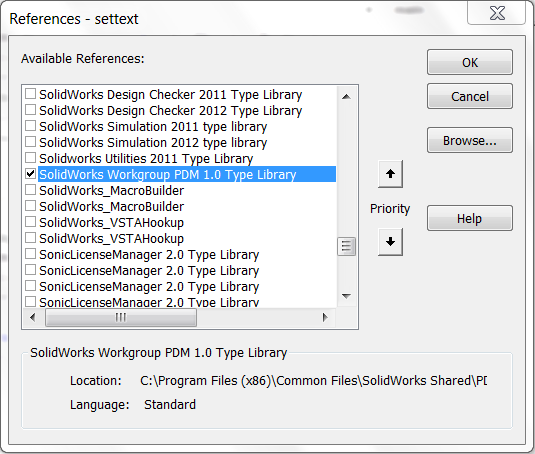
First, let’s review how to create a very simple WPDM macro using VBA. This code simply saves out revision “A-02+” of part “block.sldprt” from the vault to “C:\Shop Floor”. You will see that I am using the default WPDM user name and password. The vault is located on a server with DNS name “dataserver”. Also note that before this code will run you must have the “SolidWorks Workgroup PDM 1.0 Type Library” referenced under Tools –> References (if using VBA).
And now the code.
Dim myPDMConn As New PDMWConnection

Dim myDoc As PDMWDocument

Dim strDocName As String

Sub Main()

    Set myPDMConn = CreateObject("PDMWorks.PDMWConnection")

    myPDMConn.Login "pdmwadmin", "pdmwadmin", "dataserver"

    myPDMConn.Refresh

    strDocName = "block.sldprt"

    Set myDoc = myPDMConn.GetSpecificDocument(strDocName, "A-02+")

    myDoc.Save "C:\Shop Floor"

    myPDMConn.Logout

End Sub
As you can see, the API calls are fairly straightforward. If you want to see what else is available in the WPDM API then just go to the local API Help and under the top level of the Contents tab look for “SolidWorks Workgroup PDM API Help”. For the online version go here. Some of the more notable capabilities of the WPDM API include:
- Checking data in and out
- Saving from the vault
- Querying the vault
- Export queried data to Excel, Access, SQL Server, or Oracle
- Triggers (notifications)
- Store trigger information in a database
A great PDF that covers all of this was written by Jerry Winters as part of an excellent presentation delivered at SolidWorks World 2008 called “Making the most of the PDMWorks API”. Most of the examples are in VB.NET, by the way.
Another notable WPDM API presentation was delivered at SolidWorks World 2004 called “Using the PDMWorks API to Automate PDM Communication, Integration, and Analysis”. That presentation is still available here. Note that the code samples are written in VB6, so unless you still have an old copy of Visual Studio 6.0 installed, you might have a tough time getting to the code.
Finally, don’t forget about the SolidWorks API forums. Presently, within the documents section, there is one WPDM API example covering triggers.
Know of any other useful WPDM API resources? Please share in the comments.
Enjoy!
Want to keep up with new CADSharp.com content? Sign up for our newsletter.
Free SolidWorks API Training Webinars in June

CADSharp.com is proud to announce its upcoming SolidWorks API training webinars for the month of June, 2012, covering a range of important API topics. Please note that these times are not set in stone, and I am willing to change times or add more times depending on level of interest.
Interested in attending a webinar? Please sign up for our newsletter to receive details.
Introduction to the SolidWorks API
Time: Friday, June 1, 5:00 PM GMT (12:00 PM EST)
Duration: 1 hour
API skill level: Beginner
Looking to finally get your hands dirty with the SolidWorks API? No experience is necessary for this hands-on introduction to the SolidWorks API. The macro recorder, API Help, basic VBA programming, and much more will be demonstrated with easy-to-follow examples. Attendees are welcome to ask questions during and after the presentation.
Automating Custom Properties
Time: Thursday, June 21, 5:00 PM GMT (12:00 PM EST)
Duration: 1 hour
API skill level: Intermediate
This presentation assumes that you have a basic understanding of the SolidWorks API, particularly how to use the API Help. You will learn how to access and use the ICustomPropertyManager interface to control custom properties at the document and configuration specific level. This will include adding, modifying, deleting, and traversing custom properties. Attendees are welcome to ask questions during and after the presentation.
Again, you will need to sign up for our newsletter to receive additional webinar details.
7 Mistakes New SolidWorks API Programmers Make

For those who don’t know, SolidSmack.com, the largest CAD/CAM blog in the world, recently ran an article on CADSharp.com in which I answered three questions about the SolidWorks API. The third question was perhaps the most insightul: “What advice do you have for aspiring API progammers?” This question is so important that I decided to expand upon my answer in more depth in this blog post.
Even though this post is geared toward beginners, those who have many macros under their belt but still don’t quite feel like they’ve “got it” should find great insight. So without further adieu, here are 7 warnings I offer to every engineer who wants to program seriously with the SolidWorks API.
1. Not learning the SolidWorks API with Visual Basic for Applications (VBA)
VB.NET, C#, and C++ are very powerful languages. However, for macros of low to medium complexity, that power is completely unnecessary. If you’re an aspiring API programmer, you probably care about just one thing: automating your work. Then why fight the steeper learning curve of those other languages? Learn the API with VBA so you can spend less time learning the programming language itself and more time learning the SolidWorks API. The API works roughly the same in each language, so once you’re ready to move on to a more complex language, you already have the important stuff under your belt.
Ready to learn VBA programming basics? Check out the free lessons from Unit 1 of our VBA course.
2. Relying On the Macro Recorder
For an API novice, it makes perfect sense to use the macro recorder. Here’s a tool, it would seem, that gives you all of the API calls you need to create a macro. Right? Wrong. For starters, the macro recorder can’t record certain tasks at all. Working with custom properties is an example. Second, relying on the macro recorder is dangerous because keeps you in the mindset that the API performs tasks the same way you would perform them “manually”. Again, this couldn’t be further from the truth. The steps required to create a section view or change a face’s color, for example, are entirely different when using the API versus using SolidWorks normally. Third, the code the macro recorder produces is incredibly sloppy. Its formatted poorly and typically contains arguments you may or may not want. A much better practice is to use the macro recorder to “discover” an API call when you know it might take a while to find in the API Help. Nevertheless, the API Help, not the macro recorder, should be your ‘go-to’ resource, as we’ll discuss in the next mistake.
Want to learn more about the uses and limitations of the macro recorder? Check out Lesson 2.1 in our VBA course.
3. Not understanding how to use the API Help
If you think the API Help is just a stuffy reference for hardcore developers, think again. If you don’t know how to navigate your way around the API Help, your macros will never move beyond what you create with the macro recorder or what you copy and paste from someone else’s code. Using the Index tab of the local API Help, you can search topically until you find the API call or interface you need. Every single API call and interface has its own page describing how to use it properly—from arguments to return values to examples to other useful tidbits of info that you need to know.
Ready to learn how to use the API Help? Check out Lesson 2.2 from our VBA course.
4. Not understanding the SolidWorks API object model
If you really want to go to the next level as an API programmer, you MUST understand the SolidWorks API Object Model. What is this “object model”, you ask? Basically, everything you interact with in SolidWorks is considered an object by the SolidWorks API—a face, an edge, a drawing view, a component, the FeatureManager tree, a part document, the SolidWorks application itself, and so on. Each of these objects has a corresponding “interface” that lets the API talk with that object. Now here’s the important part: these objects are arranged in a hierarchy. So, for example, before you can change the color of a face, you need access to that face’s body. Before you have access to the body, however, you need access to the part document. Before you have access to the part document, you need access to the SolidWorks application. Get the idea?
To access different interfaces you need to use special API calls known as “accessors”. Here’s the great thing: every interface page in the API Help has a list of the accessors that can be used to access that interface. Hence the importance of knowing how to use the API Help well.
Ready to learn the SolidWorks API Object Model in conjunction with the API Help? Check out Lesson 2.3 from our VBA course.
5. Not modularizing your code
Modularizing code allows you to easily re-use code. It also makes you a faster programmer and makes your code less error-prone. Let me explain. Say that you write lots of macros that require you to pull out the value of a custom property called “PartNo”. Instead of re-writing that bit of code over and over again, you should create a separate function (called something like “GetPartNo”) that is called by your main code. Once you’ve written “GetPartNo” once, you don’t need to keep writing it. Instead you can place that function in its own module that you can import easily to other macros. Since you know it works, you don’t have to worry about debugging it in the future.
Ready to learn how to modularize your code? Check out Lesson 1.7 from our VBA course.
6. Not documenting or formatting your code properly
This isn’t just a mistake committed by API programmers but programmers in general. However the mistake is so serious that I have to mention it again, even if you’ve heard it before: take the time to format and document your code properly. Formatting code properly means using appropriate indentation when you “nest” layers of code within sub-procedures, conditional statements, loops, and so on. By not doing this you are making your code very difficult to read.
Documenting your code means using comments to explain the purpose of each section of code. For example, if you check out any of the macros in our Macro Library, you’ll notice three things: 1) at the top, an explanation of what the code does (including preconditions necessary for running the code), 2) comments throughout the macro explaining what role each portion of code plays, and 3) often times at the time you’ll see additional notes giving more insight into a certain API call. The result is code that is much easier for the author and others to understand. If you don’t believe me, just wait until you have to edit a macro that you wrote two years ago. You’ll have no clue what the variables do and will have to spend a large portion of time re-familiarizing yourself with the code. Its even worse if you weren’t the one who wrote the code originally.
Ready to learn more about formatting and documenting code? Check out the first four lessons of our VBA course, or check out our one-hour intro to the API, Taking Macros to the People.
7. Giving up too quickly
As with anything else in life that’s worth doing, becoming a good SolidWorks API programmer requires perseverance. As a programmer, you’re going to hit obstacles constantly. With every obstacle, however, is the opportunity for another victory. Learn to love these small victories. Keep your eye fixed on prize—automating your project, impressing your co-workers, expanding your professional repertoire, or whatever it might be. Again, as with anything else that’s challenging, programming with the API gets easier as you practice it more. Once you understand the API Help and Object Model, you’ll truly be amazed at how quickly you can write macros. You’ll love it! So stick with it, and enjoy the results.
Whether you’re a novice presently committing these mistakes or an expert that has long moved past them, I’d love to hear your insight! Share in the comments below.
Keith
Want to stay up-to-date with new CADSharp.com content? Sign up for our newsletter.