
Schedule Macros Using the Task Scheduler
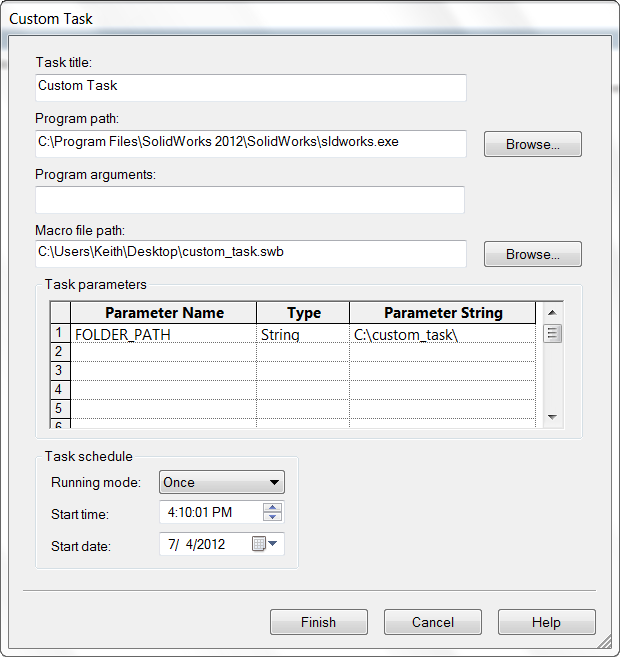
Have a macro that you’d like to run on all models in a directory while out of the office? Enter the Task Scheduler. Located in the SolidWorks Tools directory in your Start Menu, this program allows you to schedule batch operation tasks like updating the versions of your files, converting your models to DXF, updating custom properties, and so on. Those with SolidWorks Professional or Premium have the “Run Custom Task” option, which allows you to schedule the execution of a macro as well as specify its parameters.
As an example, let’s say that each night at 12:00 AM you want to open up every part in a directory and change the display setting to “shaded without edges”. Here are the steps you would follow:
1. Write a macro that opens up every part in a specified directory and changes the display the setting. In the code below you can see that the current specified directory is “C:\custom_task\”. (Download the files here.)
Dim swApp As SldWorks.SldWorks

Dim swModel As SldWorks.ModelDoc2

Const strFolderPath As String = "C:\custom_task\"

Dim strFileName As String

Sub main()

    Set swApp = Application.SldWorks

    strFileName = Dir(strFolderPath & "*.SLDPRT")

    While strFileName <> ""

        Set swModel = swApp.OpenDoc6(strFolderPath & strFileName, _

            swDocPART, 1, Empty, Empty, Empty)

        swModel.ViewDisplayShaded

        swModel.Save3 1, Empty, Empty

        swApp.QuitDoc swModel.GetTitle

        strFileName = Dir

    Wend

    swApp.ExitApp

End Sub
2. Copy the code from the VB editor to Notepad and change the strFolderPath value to $$$FOLDER_PATH$$$. Your variable declaration for strFolderPath should now look like this:
Const strFolderPath As String = $$$FOLDER_PATH$$$
3. Save the text file as a .swb file.
4. Open Task Scheduler
5. Choose Run Custom Task
6. Click the Browse button next to Macro File Path and locate the .swb you just created
7. In the task parameters section, you should now see a parameter called FOLDER_PATH. Click in the Parameter String cell on the right and enter the directory that contains the files you want to convert to shaded without edges
8. After specifying the running mode, start time, and start date, click Finish and your task should be added to the queue. If you left the start time and date at their initial values then the task should start running immediately.
Some additional comments and notes about using the Task Scheduler with macros:
- You can also run regular .swp files using the Task Scheduler. With these files, however, you cannot specify parameters. The macro will simply run “as is”. To be able to specify parameters you have to use an .swb file.
- Optionally, you can simply change the variables in the .swp file to $$$
$$$, save the .swp file, and then rename the extension to .swp. - You can control string an numeric parameters using the Task Scheduler. Use $$$
$$$ for string values and ### ### for numeric values. - If you do not use ISldWorks::ExitApp at the end of your macro, the SolidWorks application will not close after the task is finished running. Consequently, the task will not be marked as Complete within the Task Scheduler.
- You do not need to have the Task Scheduler open for the scheduled task to run.
- Any dialog boxes created by macros run by the Task Scheduler will automatically be closed. This is done to prevent dialog boxes from stalling the execution of the tasks.
- You can control string an numeric parameters using the Task Scheduler. Use $$$
Keeping it custom,
Keith
Want to keep up with new CADSharp.com content? Sign up for our newsletter.
7 Ways To Run A Macro Without the Run Button
How do you run your macros right now? Tools–>Macro–>Run? By clicking Run on the macro toolbar? If macros are even a small part of your workflow, you can do much better. In this post, I want to increase your versatility by showing you four ways you can run a macro without having to use the Run button.
1. Using custom toolbar and keyboard shortcuts
Many of you may know of this option already, but it is still worth mentioning. You can create custom toolbar shortcuts for any macro by going to Tools–>Customize, Commands tab, choosing the Macro category from the list on the left, and then dragging the New Macro Button icon onto a toolbar of your choose.

As soon as you release the mouse button, you should get a dialog prompting you for the macro location (which you can browse for), the button tooltip, and the method. Specifying the correct method is very important since this is the first method that will be run when the macro is executed.
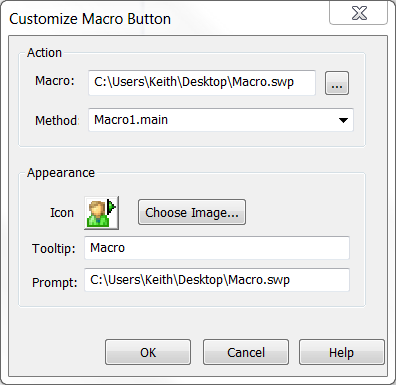
If you want to take it step further, while you’re still in the Customize dialog box, go to the Keyboard tab, search for your new macro button, and add a keyboard shortcut.
2. When SolidWorks starts
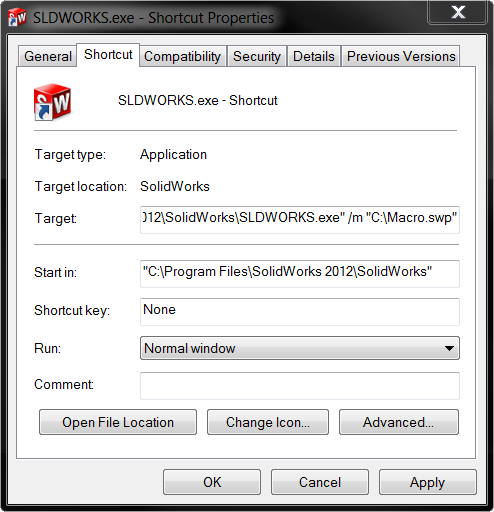
This option is invaluable for event-based macros that run code when a certain event fires, because it is ensures that you never forget to turn on the macro when SolidWorks starts. (To see some great examples of event-based macros, check out our Macro Library and look under the Notifications section.) After you create a shortcut directly from your executable, go into the shortcut properties and modify the target using the following syntax:
“<path to SolidWorks executable>” /m “<path to macro>”
As an example, if your SolidWorks executable is in the default file location on Windows 7 x64 and your macro, called “macro.swp”, is on C:\, your target would look like this:
“C:\Program Files\SolidWorks 2012\SolidWorks\” /m “C:\macro.swp”
3. From another macro
Yes, it is possible to “chain” macros to together using ISldWorks::RunMacro2. In this method you’ll find arguments that allow you to specify the path to the macro you wish to run and also the initial method that you want to run. This is a great option when you want to keep tasks separate in your macro workflow or quickly swap out tasks. For example, your main macro might have a form that allows a user to specify a macro to run before or after your main task is accomplished.
To see a very simple example of ISldWorks::RunMacro2, check out “Run a macro from another macro” in the Macro Library.
4. From the Design Binder
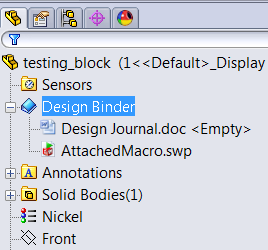
Many SolidWorks users do not know what the Design Binder is, let alone that you can run macros from it. The Design Binder is essentially a backpack for your SolidWorks model that allows you to attach relevant documents. This could include a word document, a spreadsheet, and, yes, even a macro. Consequently if you have written a macro specific to a document and need to make sure that the two stay together, attaching it to the Design Binder is a great option. Then if you write another macro that needs to run the macro attached to the Design Binder, you simply call ISldWorks::RunAttachedMacro. Much like ISldWorks::RunMacro2, you need to specify the sub procedure you want to run initially.
Do you know of any other useful ways to run a macro? Please share below.
5. From the Task Scheduler
Have a macro that you’d like to run on all models in a directory while out of the office? Enter the Task Scheduler. Located in the SolidWorks Tools directory in your Start Menu, this program allows you to schedule batch operation tasks like updating the versions of your files, converting your models to DXF, updating custom properties, and so on. Those with SolidWorks Professional or Premium have the “Run Custom Task” option, which allows you to schedule the execution of a macro as well as specify its parameters. Learn more about using macros with the Task Scheduler here.
6. From a macro feature
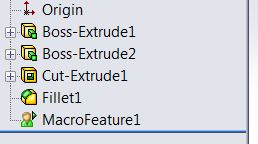
Macro features are custom SolidWorks features defined by the SolidWorks API. They reside in the feature-tree and can be added, edited, and deleted like any other feature. The bulk of the code defining a macro feature gets run when a document rebuilds, so during this time you can have the macro perform any task that doesn’t cause a rebuild. You can learn more about macro features here. Note, however, that macro features are ideally used for actually modifying geometry. If you simply want to run some code every rebuild, I’d encourage you to use equation-triggered macros instead, which are described in the next section.
7. From an equation
Few know that you can insert VBA code in an equation so that it gets run every time the equation is recalculated (which is every rebuild). Combine this trick with ISldWorks::RunAttachedMacro and ISldWorks::RunMacro2, which I described earlier in this post, and you have a pretty nifty technique for embedding and running macros while a part or assembly is open. Plus, the macro can travel with the document if you desire. These types of macros, which I call equation-triggered macros, are explained in great detail here. ETMs are usually the most effective way to run a macro without involving the end user.
Stay versatile, friends.
Keith
Want to keep up with new CADSharp.com content? Sign up for our newsletter.
Advanced API: Storing Data in Models Using Attributes
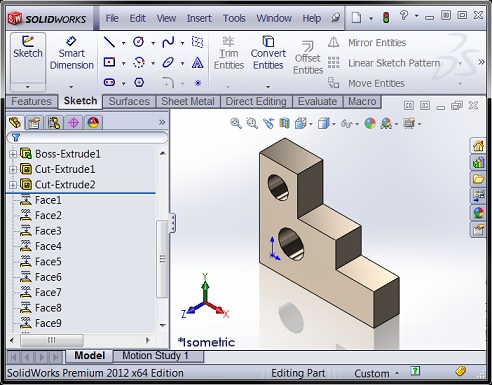
An attribute is a container of user-defined data that a SolidWorks API programmer can store on a SolidWorks model or entity. Like custom properties, they are saved with the model. Attributes, however, have three notable advantages over custom properties:
- A single attribute can contain an unlimited number of parameters of different types
- Attributes can be associated with specific geometry (e.g., faces, edges, vertices) and therefore traversed
- Attributes can be visible to the end user OR hidden
Programming attributes involves three interfaces: IAttributeDef, IAttribute, and IParameter. Here are the basic steps for creating an attribute.
- Define the attribute using ISldWorks::DefineAttribute, which returns the IAttributeDef object. One argument is required—a unique definition name.
- Add any number of parameters to the definition using IAttributeDef::AddParameter.
- Register the definition using IAttributeDef::Register.
- Create an instance of the definition on the model or on a model entity using IAttributeDef::CreateInstance5, which returns an IAttribute object. If the attribute is being created on the model, use Nothing for the second argument, otherwise specify the entity (e.g., an IFace2 or IEdge object).
- Optionally, get the parameters for that attribute using IAttribute::GetParameter.
- Optionally, get or set the parameter value using IParameter::GetDoubleValue / SetDoubleValue2 (if the parameter is of type double) or IParameter::GetStringValue / SetStringValue2 (if the parameter is of type string).
If you wanted to add an attribute called “MyAtt” containing a double value of 0.1 to a selected face, your code would look like this:
Dim swApp As SldWorks.SldWorks

Dim swModel As SldWorks.ModelDoc2

Dim swSelMgr As SldWorks.SelectionMgr

Dim swFace As SldWorks.Face2

Dim swAttDef As SldWorks.AttributeDef

Dim swAtt As SldWorks.Attribute

Dim swParam As SldWorks.Parameter

Sub main()

    Set swApp = Application.SldWorks

    Set swModel = swApp.ActiveDoc

    Set swSelMgr = swModel.SelectionManager

    Set swFace = swSelMgr.GetSelectedObject6(1, -1)

    Set swAttDef = swApp.DefineAttribute("template")

    swAttDef.AddParameter "area", swParamTypeDouble, 0.1, 0

    swAttDef.Register

    Set swAtt = swAttDef.CreateInstance5(swModel, swFace, "MyAtt", 0, swAllConfiguration)

    Set swParam = swAtt.GetParameter("area")

    swParam.SetDoubleValue2 swFace.GetArea, swAllConfiguration, Empty

End Sub
While this may seem a little complicated, keep in mind the tremendous versatility available to us. If we want, we could keep using our attribute definition over and over as we create multiple instances on different faces. Multiple instances of the same attribute definition can be created on the same entity, however each instance must have its own name.
Reading the values from existing attributes can be done many different ways. Since an attribute instance is a feature, it can be traversed using normal feature traversal techniques, accessed directly using FeatureByName (available in IPartDoc, IAssemblyDoc, and IDrawingDoc), or, if it is selected in the FeatureManager tree, it can be accessed using ISelectionManager::GetSelectedObject6. Once the IFeature object is obtained, use IFeature::GetSpecificFeature2 to get the actual IAttribute object.
If the attribute is associated with a particular piece of geometry, the aforementioned techniques might not be helpful. Instead, while you traverse your geometry, you can use IEntity::FindAttribute to determine if an attribute of a particular name is present. In this case, be sure to call IAttribute::GetEntityState to make sure that the instance is valid.
In our Macro Library we have to two great examples that demonstrate how to add, find, and read attributes:
Add and read attributes on document (Free)
Add or find attributes on all faces (Premium)
Finally, some words of caution/advice when using attributes:
- It is not recommended that you use attributes solely for located entities that, for example, need to be mated. There are far better techniques for locating topology / geometry. Use attributes only store data within the model.
- Attributes can be named anything a programmer desires. However, since other third party applications can use attributes, it is recommended that add-in programmers name their attributes with a unique three character prefix. Send attribute prefix requests to apisupport@solidworks.com.
- Use double parameters instead of integer parameters, because there is no way to get or set the latter. (See the API Help article IAttributeDef::AddParameter.) Also note that only double parameters can have a default value set. For string values, use Empty in the third argument of IAttributeDef::AddParameter and set the value later using IParameter::SetStringValue2.
- Once an attribute definition is registered, it cannot be modified. For example, you cannot add, remove, or change the names of parameters. Check the return value of IAttributeDef::Register to see if registry is failing. You may have already registered a definition with that name.
- The only time attributes can be added to a model while a PropertyManager page is open is in the AfterClose event, since adding an attribute is adding a feature, and adding a feature while a PMP is active is not allowed (or at least will typically not work).
- If you are running into errors like Run-time error 91 but aren’t sure why, try restarting SolidWorks to give yourself a clean slate in terms of memory.
That concludes our look at attributes. Thanks for reading!
Want to keep up with new CADSharp.com content? Sign up for our newsletter.