
Author
Keith Rice
Technical Director
Disclaimer
This guide is provided as-is. By using it, you accept any responsibility for any consequences, intended or unintended, that result.
Guide Contents
This guide contains the following:
- Introduction to the Document Manager API (i.e., why it is used, what it can do, what it cannot do)
- Advice for finding DM API calls
- DM API best practices and useful information
- Prerequisites for the tutorials and demonstrations in this guide
- Tutorial: How to use the DM API examples found in the SolidWorks API Help
- Tutorial: How to create a console application from scratch that modifies a part's custom properties
- Demo: How the program created in the second tutorial might look as a customer-facing, production-ready program
Introduction to the Document Manager API
The Document Manager API allows developers to read and write to the metadata of a SolidWorks document without opening it in SolidWorks. This increases performance and removes the need for SolidWorks to be installed on a computer. The DM API is used extensively by SolidWorks Explorer, SolidWorks Task Scheduler, and SolidWorks PDM, for example. Using the DM API, you can do things like:
- Create, read, update, and delete custom properties
- Get the names of configurations
- Get and set a file's references
- Get where a file is used
- Save a file with a new name
- Read / write to third-party storage
- Get the transform of a component
On the other hand, the DM API cannot do things like:
- Get feature, body, or component names
- Get mass properties of a model
- Create or modify features and annotations
- Create or modify configurations
Advice For Finding API Calls
The DM API is easier to use than the SolidWorks API. If you have already used the latter then you should have little difficulty picking up the former. It is, however, structured slightly differently than the SolidWorks API, which can make it more tedious to find the API calls you're looking for. Specifically, in the SolidWorks API, a new version of an interface will have all of its available members listed on its Members page in the SolidWorks API Help. In the DM API, however, the new version of an interface will only the new members listed, even though the members from earlier versions of that interface are still available.
For example, as of SolidWorks 2017, ISwDMDocument20 is the newest version of the interface that represents a SolidWorks document in the DM API. If you look in this interface's members, you will see only two methods, both relating to deleting third-party storage. You can still use a ISwDMDocument20 variable to call any of the members from earlier versions of this interface. In fact, in Visual Studio, the intellisense will still show all of those members.
Since the interface pages only list the members added for that version alone, searching for API calls can be tedious. When using the local API Help (the Document Manager API Help is contained in the same help file as the SolidWorks API Help, by the way), I will usually forego using the Index tab and start with the Search tab and sorting the results by Location to see what is available in the DM API. If you're getting 500+ results, add "document manager" to your search text and this will frequently remove a great number of help pages from the other APIs. Bellow you can see how I am using the Search tab and sorting by Location:
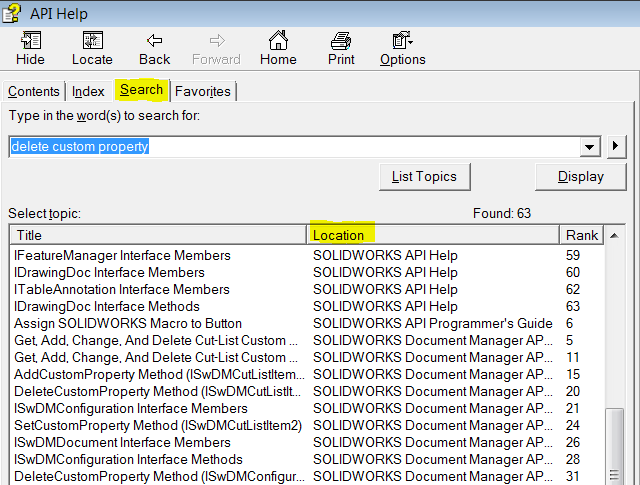
Of course, searching for API calls using the Search tab requires you to know the correct keywords relating to what you're looking for. Sometimes you might only have a vague idea of what the API call you might need is called. In that case, go to the Contents tab of the API Help and begin looking at the Members lists of any interfaces that could possibly be relevant. This is a tedious process but sometimes it is your only option. As a last resort, you could ask for help on the SolidWorks API forums.
Document Manager API Best Practices / Useful Information
- The DM API usually used with stand-alones, occasionally with addins, and almost never with VBA macros.
- If your program will run on a computer where SolidWorks is not installed, a stand-alone is your only option.
- When using an addin or macro, SolidWorks is already open, so often-times it is unnecessary to use the DM API and easier to use the SolidWorks API. I tend to only use the DM API in an addin when it will result in much higher performance.
- Example: Let's say that I'm writing an addin that must add a "Description" custom property to all parts in a folder that do not already have this custom property. Using the SolidWorks API, I would have to open each of the models, check to see if "Description" exists, and then proceed. Opening and closing files can be slow. With the DM API, I can test all of the files in a folder in just seconds without needing to open any of them. Once I have my list of files needing processing, my addin can open just those.
- All DM API examples are in .NET, which is an indication that SolidWorks Corp encourages developers to use the DM API with .NET and not VBA macros.
- If you do use the DM API with an addin or macro to modify a file, be careful not to have that file open in SolidWorks at the same time, or you will get an access error.
- As with the SolidWorks API, I would recommend always using the newest version of an interface or member. Not just to ensure that you have all of the latest methods and properties available, but also because bug fixes are introduced in each version.
- For example, ISwDMConfiguration.GetComponents returned different results on different machines as recently as 2016. This was fixed in 2017.
- The DM API requires a license key that any SolidWorks customer can request for free in the customer portal as long as they have an active subscription with their reseller. (See Prerequisites for information on how to obtain one.)
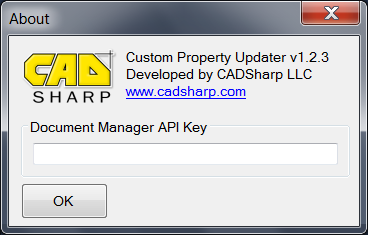
- As of 2015, the DM API license key is backward compatible but not forward compatible. (Previously, all keys were forward compatible as well.) If you plan on distributing an application to other organizations, I recommend that they be responsible for upgrading their key each year. Therefore, instead of hard-coding a key into the program, I provide a place for the user to enter the key, so they can replace it easily when they obtain a new one. Example:
- When you request the license key, you will need to specify what DM API functionality you want to use. If you do not specify the ability to see previews, for example, then ISwDMDocument10.GetPreviewBitmap will fail.
- Saving a document with the DM API does not change its version. A 2016 model modified and saved with the 2017 DM API will still be a 2016 model.
- Although the DM doesn't require SolidWorks or SolidWorks PDM to be installed on a computer, swDocumentManager.dll (which is located in C:\Program Files\Common Files\SolidWorks Shared) needs to be registered with COM. It is registered automatically if SolidWorks, SolidWorks PDM, SolidWorks Explorer, or eDrawings is installed on a computer. Otherwise your installer package will need to register it when your program is installed.
- If you this DLL is registered but you're still getting a "Cannot create ActiveX component" error then you need to go to your project's properties and turn off the "Prefer 32-bit" option.
- The elements in the transform matrix returned by ISwDMDocument.Transform are not in the same order as in the matrix returned by IMathTransform.ArrayData in the SolidWorks API.
- Microsoft's DSOFile, commonly used with Office files, can also be used to modify document-level custom properties in SolidWorks files, but not configuration-specific custom properties.
Prerequisites for Tutorials and Demonstrations
Before using this guide, please make sure you have:
- Visual Studio installed on your computer
- A free version, Visual Studio Community 2015, is available here
- A basic knowledge of VB.NET or C#, namely variables, functions, and user forms
- Many free tutorials for basic .NET programming are available online
- A Document Manager API License Key
- Go to the Customer Portal and login
- Under "My Support", choose API Support
- Under the References tab, choose Document Manager Key Request
- Fill out the appropriate information and your key will be sent within one or two business days
- A folder on your hard-drive with some test models
Tutorial: How to use the DM API examples found in the SolidWorks API Help
Get Configuration Information Example (VB.NET)
Get Configuration Information Example (C#)
You will see many great examples of the DM API in the SolidWorks API Help, like the two listed above. While all of these examples have instructions in the comments on how to use them, the instructions might not be very clear for beginners and omit several few relevant steps. This tutorial will show you how to successfully use the examples above, which print information about a model's configurations to the output / immediate window in Visual Studio.
-
Create a new Console Application in Visual Studio
- In Visual Studio, go to File-->New Project.
- In the dialog that appears, click Templates in the left-most pane.
- Choose Visual Basic or Visual C# depending on whether the example is in VB.NET or C#.
- In the middle pane, choose Console Application.
- Enter a name for the program or use the default.
- Browse to where you want to save your project.
-
Add a reference to the DLL containing the Document Manager API
-
Create a folder in your project directory called "thirdparty".
- Your project directory contains your *.vb / *.cs file.
-
Copy SolidWorks.Interop.swdocumentmgr.dll into this folder from \api\redist
-
In Visual Studio, right click on References in the Solution Explorer --> Add, choose the Browse tab on the left pane, click the Browse button, browse to the DLL you just copied, click OK.
Note: The reason we copied the DM API DLL into a project folder is so that our project will always know the relative path of the DLL. If we referenced the DLL located in the SolidWorks installation folder, our references might break if the SolidWorks installation path ever changed.
-
Copy the example code into your project
- You do not need to copy all of the comment code at the start of the example. Your copy can begin with the Imports / using statements.
- Paste over any existing code in your project.
-
Search for the variable called "sLicenseKey" and replace its text value (your_license_key) with your DM API license key.
-
Unless you want the program to run on the default part whose path they have hard-coded in, search for the variable called "sDocFileName" and replace its text value with the path to the model you want the program to examine.
-
Run the program
- In the above example, which is from the 2017 API Help, you will get error due to SwDMDocument17 not containing a definition for certain methods, such as CreationDate2 and LastSavedDate2. This is because these methods were introduced with SwDMDocument19. Therefore, you will need to locate all instances of SwDMDocument17 and change them to SwDMDocument19.
-
Examine the output window to see the model's configuration information
- The output window should be accessible via a tab below your code window. If it is not, you can open it by going to Debug-->Windows-->Output.
- The instructions in the example comments incorrectly state that this information is printed to the immediate window. In Visual Studio, text printed using Debug.Print() is actually printed to the output window, by default. This can be confusing for those who work with the SolidWorks VB Editor, in which Debug.Print() does print to the immediate window. To have Visual Studio print to the immediate window instead (thereby mimicking the VB Editor experience), turn on this setting: Tools-->Options-->Debugging (in the left pane)-->"Redirect all Output Window text to Immediate Window" (in the right pane)
Tutorial: Create a console application from scratch that modifies a part's custom properties
Download the completed programs here:
In this tutorial, we're going to create a console application that can create, read, update, or delete the document-level custom properties from a Solidworks model.
Important: This program will contain very little error handling, so that we can focus on the essential code for using the Document Manager API. A more robust program should constantly check for Nothing / null and examine any error codes returned by API calls. (See the demo after this tutorial for an example of such a program.)
-
Create a new Console Application in Visual Studio
- In Visual Studio, go to File-->New Project.
- In the dialog that appears, click Templates in the left-most pane.
- Choose Visual Basic or Visual C# depending on whether you want to use VB.NET or C#.
- In the middle pane, choose Console Application.
- Enter a name, like "DocMgrTest"
- Browse to where you want to save your project.
-
Add a reference to the DLL containing the Document Manager API
-
Create a folder in your project directory called "thirdparty"
- Your project directory contains your *.vb / *.cs file.
-
Copy SolidWorks.Interop.swdocumentmgr.dll into this folder from \api\redist
-
In Visual Studio, right click on References in the Solution Explorer --> Add, choose the Browse tab on the left pane, click the Browse button, browse to the DLL you just copied, click OK
Note: The reason we copied the DM API DLL into a project folder is so that our project will always know the relative path of the DLL. If we referenced the DLL located in the SolidWorks installation folder, our references might break if the SolidWorks installation path ever changed.
-
-
Add these Imports / using statements to the top of your code window, even above the class declaration. If any Imports / using statements already exist, you can replace them with these.
VB.NET
Imports SolidWorks.Interop.swdocumentmgr
C#
using System;
using SolidWorks.Interop.swdocumentmgr;
Note: These are not required, but it will greatly reduce the amount of typing we do every time we call the Document Manager API.
-
This program will include two constants, which we will add between our class declaration and the Main() function.
- The path to the SolidWorks part file we will work with
- Our Document Manager license key
VB.NET
Private Const FilePath As String = "C:\Models\MyPart.SLDPRT"
Private Const DMLicenseKey As String = ""
C#
private const string FilePath = "C:\\Models\\MyPart.SLDPRT";
private const string DMLicenseKey = "";
Note: We could hard-code these values into the functions in our program that use them, but its not considered good programming practice to do that. In fact, controlling these values as constants isn't very good practice either. In the final program I show you, we will let the user specify both the folder location and the DM license key from the program's user interface.
- Before we go further, let me share what our program needs to do in order to create, read, update, and delete custom properties using the Document Manager API:
- Access the Document Manager
- Access a particular document with the Document Manager
- Use DM API calls to modify / read that document's custom properties
- Save the document (if changes were made)
- Close the document
Since each of these encompass distinct tasks, we will create separate functions to handle each one. Step 3 will actually involve a separate function for creating, reading, updating, and deleting custom properties.
- Accessing the Document Manager
-
Create a function called "GetDocumentManager" below your main method that looks like this:
VB.NET
-
Private Function GetDocumentManager() As SwDMApplication4
Console.WriteLine("Getting Document Manager")

Dim dmClassFact As SwDMClassFactory = CreateObject("SwDocumentMgr.SwDMClassFactory")

Return dmClassFact.GetApplication(DMLicenseKey)
End Function
- C#
private static SwDMApplication4 GetDocumentManager()
{
Console.WriteLine("Getting Document Manager");

SwDMClassFactory dmClassFact = new SwDMClassFactory();

return (SwDMApplication4)dmClassFact.GetApplication(DMLicenseKey);
}
-
Accessing the DM is always accomplished by creating an SwDMClassFactory object followed by getting a SwDMApplication4 object, which represents the Document Manager itself. SwDMClassFactory.GetApplication takes one parameter, which is our DM license key. If the key is invalid then we will get an exception that says "Class is not licensed for use" when we try to use ISwDMApplication4.
Note: In all of the functions we will create, we will log what is happening to the console window using Console.WriteLine(). Obviously this is not required but is is useful for testing purposes.
-
Call this function from Main() and add Console.ReadKey() at the end.
VB.NET
Sub Main()
'Access the DM
Dim dmDocMgr As SwDMApplication4 = GetDocumentManager()
Console.ReadKey()
End Sub
C#
static void Main(string[] args)
{
// Access the DM
SwDMApplication4 dmDocMgr = GetDocumentManager();
Console.ReadKey();
}
-
Test out your program. You should see the following in the console window. Press any key to continue.
Getting Document Manager
-
Access a SolidWorks document with the Document Manager
-
Opening a document with the DM is as simple as using SwDMApplication4.GetDocument. This method returns a pointer to SwDmDocumentX and takes four arguments:
- FullPathName. The fully qualified path to the document.
- docType. The type of document to be opened, as defined by the SwDmDocumentType enumeration
- allowReadOnly. This argument name is a misnomer. The name implies that you want to open a read-only document, when in reality this boolean argument determines whether the document will be opened read-only by the Document Manager. A better name would have been "openAsReadOnly". Anyway, if you plan on modifying the file using the DM then you want to pass in False.
- result. A return value as defined by SwDmDocumentOpenError, which will tell us why a document may have failed to open.
-
Create a function called GetDocument() below GetDocumentManager() that looks like this:
VB.NET
Private Function GetDocument(dmDocMgr As SwDMApplication4, filePath As String) As SwDMDocument20
Console.WriteLine("Getting document: " + filePath)
Return dmDocMgr.GetDocument(filePath, SwDmDocumentType.swDmDocumentPart, False, Nothing)
End Function
C#
private static SwDMDocument20 GetDocument(SwDMApplication4 dmDocMgr, string filePath)
{
Console.WriteLine("Getting document: " + filePath);
SwDmDocumentOpenError err;
return (SwDMDocument20)dmDocMgr.GetDocument(filePath, SwDmDocumentType.swDmDocumentPart, false, out err);
}
Note #1: As mentioned earlier, I'm not including much error handling since this is a demonstration program. In the VB.NET code, I have effectively ignored the out argument (the fourth argument) by passing in Nothing. Passing in null for an out argument is not allowed in C#, therefore we still have to create a variable even we do not plan on using it.
Note #2: If you are not using the 2017 version of the DM then you will not have SwDMDocument20 available. Simply use the latest version that you do have.
-
Call this function from Main(), after GetDocumentManager() but before Console.ReadKey(). For the arguments, pass in the SwDMApplication4 object we already obtained as well as the FilePath constant that contains the path to our SolidWorks part document.
VB.NET
Sub Main()
'Access the DM
Dim dmDocMgr As SwDMApplication4 = GetDocumentManager()
'Get the document
Dim dmDoc As SwDMDocument20 = GetDocument(dmDocMgr, FilePath)
Console.ReadKey()
End Sub
C#
static void Main(string[] args)
{
// Access the DM
SwDMApplication4 dmDocMgr = GetDocumentManager();
// Get the document
SwDMDocument20 dmDoc = GetDocument(dmDocMgr, FilePath);
Console.ReadKey();
}
-
Test out your program. You should see the following in the console window. Press any key to continue.
Getting Document Manager
Getting document:
-
-
Use the Document Manager API to modify a document's custom properties
-
In our example, we will do the following:
-
Create two custom properties
-
Read their values
-
Update their values
-
Delete one of them
Since we are only concerned about document-level custom properties, we only need access to the document, which we have. If we were interested in working with configuration-specific custom properties, we would need the Document Manager to access the model's configurations, as well. All of the custom property API calls we use below have corresponding API calls for the configuration level. (For example, ISwDMDocument.AddCustomProperty versus ISwDMConfiguration.AddCustomProperty.)
-
-
Creating a custom property
-
The API call we will use is ISwDMDocument.AddCustomProperty, which requires the name, type, and value of the new custom property. This returns true if the property was successfully added or false if the property already exists. In this program we will always create the custom properties as text properties. Add the following code below your other private functions:
VB.NET
Private Function CreateCustomProperty(dmDoc As SwDMDocument20, name As String, value As String) As Boolean
Console.WriteLine("Creating custom property " + name)
Return dmDoc.AddCustomProperty(name, SwDmCustomInfoType.swDmCustomInfoText, value)
End Function
C#
private static bool CreateCustomProperty(SwDMDocument20 dmDoc, string name, string value)
{
Console.WriteLine("Creating custom property " + name);
return dmDoc.AddCustomProperty(name, SwDmCustomInfoType.swDmCustomInfoText, value);
}
-
Call this function twice from Main(), after GetDocument() but before Console.ReadKey().
VB.NET
'Create two custom properties
CreateCustomProperty(dmDoc, "PartNo", "12345")
CreateCustomProperty(dmDoc, "Material", "Plain Carbon Steel")
C#
// Create two custom properties
CreateCustomProperty(dmDoc, "PartNo", "12345");
CreateCustomProperty(dmDoc, "Material", "Plain Carbon Steel");
-
Test your code. Verify that everything that ought to be printed to the console window is being printed.
Note: If you were to open up your SolidWorks part, you would not see the custom properties you just added. This is because we are not saving the changes we made with the DM API. We will do this in a later step.
-
-
Read a custom property
-
The API call we will use is ISwDMDocument.GetCustomProperty2, which requires the name of the custom property whose value we want to read. The second parameter returns to us the custom property type, which we don't care about in this program. The method return value is the custom property value as a string.
This function will actually throw an exception if the custom property we're trying to read doesn't exist. Therefore, before we try to read the custom property, we should verify that it exists by examining all of the existing custom properties. Since we will need to do the same thing when we update a custom a property, we'll create a function called DoesCustomPropertyExist() that we can re-use.
-
Add DoesCustomPropertyExist() below your other private functions. This code uses ISwDMDocument.GetCustomPropertyNames to get a string array of all document-level custom properties. If the array is Nothing / null then no custom properties exist in the document, in which case we return false. Otherwise, we loop through the array and set a flag to true if the custom property is found. If it is found, we return true, otherwise we return false.
VB.NET
Private Function DoesCustomPropertyExist(dmDoc As SwDMDocument20, name As String) As Boolean
Dim custPropNames As Object = dmDoc.GetCustomPropertyNames()
If custPropNames Is Nothing Then Return False
Dim found As Boolean = False
For Each custPropName As String In custPropNames
If custPropName = name Then found = True
Next
If found Then
Return True
Else
Return False
End If
End Function
C#
private static bool DoesCustomPropertyExist(SwDMDocument20 dmDoc, string name)
{
object[] custPropNames = dmDoc.GetCustomPropertyNames();
if (custPropNames == null)
return false;
bool found = false;
foreach (string custPropName in custPropNames)
if (custPropName == name)
found = true;
if (found)
return true;
else
return false;
}
-
Add a function called ReadCustomProperty() below your other private functions. In this function we will use DoesCustomPropertyExist() to verify that a custom property is present. If it is, we use ISwDMDocument.GetCustomProperty2 (discussed earlier) to read the value. Otherwise, we will print to the console that the custom property was not found.
VB.NET
Private Function ReadCustomProperty(dmDoc As SwDMDocument20, name As String) As Boolean
Console.WriteLine("Reading custom property " + name)
If DoesCustomPropertyExist(dmDoc, name) Then
Dim value As String = dmDoc.GetCustomProperty2(name, Nothing)
Console.WriteLine(value)
Return True
Else
Console.WriteLine("Custom property " + name + " not found")
Return False
End If
End Function
C#
private static bool ReadCustomProperty(SwDMDocument20 dmDoc, string name)
{
Console.WriteLine("Reading custom property " + name);
if (DoesCustomPropertyExist(dmDoc, name))
{
SwDmCustomInfoType type;
string value = dmDoc.GetCustomProperty2(name, out type);
Console.WriteLine(value);
return true;
}
else
{
Console.WriteLine("Custom property " + name + " not found");
return false;
}
}
-
Call this function twice in Main() before Console.ReadKey().
VB.NET
'Read the values of those custom properties
ReadCustomProperty(dmDoc, "PartNo")
ReadCustomProperty(dmDoc, "Material")
C#
// Read the values of those custom properties
ReadCustomProperty(dmDoc, "PartNo");
ReadCustomProperty(dmDoc, "Material");
-
Test your code. Verify that everything that ought to be printed to the console window is being printed.
-
-
Update a custom property
-
The API call we will use is ISwDMDocument.SetCustomProperty, which requires the name of the custom property we wish to modify and its a new value. Like ISwDMDocument.GetCustomProperty2, this throws an exception if the specified custom property does not exist. Therefore, we will use the DoesCustomPropertyExist() function again. Add the following code with your other private functions:
VB.NET
Private Function UpdateCustomProperty(dmDoc As SwDMDocument20, name As String, value As String) As Boolean
Console.WriteLine("Updating custom property " + name + " with this value: " + value)
If DoesCustomPropertyExist(dmDoc, name) Then
dmDoc.SetCustomProperty(name, value)
Return True
Else
Console.WriteLine("Custom property " + name + " not found")
Return False
End If
End Function
C#
private static bool UpdateCustomProperty(SwDMDocument20 dmDoc, string name, string value)
{
Console.WriteLine("Updating custom property " + name + " with this value: " + value);
if (DoesCustomPropertyExist(dmDoc, name))
{
dmDoc.SetCustomProperty(name, value);
return true;
}
else
{
Console.WriteLine("Custom property " + name + " not found");
return false;
}
}
-
Call this function twice in Main() before Console.ReadKey().
VB.NET
'Update the values of those custom properties
UpdateCustomProperty(dmDoc, "PartNo", "54321")
UpdateCustomProperty(dmDoc, "Material", "Brass")
C#
// Update the values of those custom properties
UpdateCustomProperty(dmDoc, "PartNo", "54321");
UpdateCustomProperty(dmDoc, "Material", "Brass");
-
Test your code. Verify that everything that ought to be printed to the console window is being printed.
-
-
Delete a custom property
-
The API call we will use is ISwDMDocument.DeleteCustomProperty, which requires the name of the custom property we wish to delete. This method returns true if the property was deleted and false if it was not (including if the property did not exist at all). Add the following code with your other private functions:
VB.NET
Private Function DeleteCustomProperty(dmDoc As SwDMDocument20, name As String) As Boolean
Console.WriteLine("Deleting custom property " + name)
Return dmDoc.DeleteCustomProperty(name)
End Function
C#
private static bool DeleteCustomProperty(SwDMDocument20 dmDoc, string name)
{
Console.WriteLine("Deleting custom property " + name);
return dmDoc.DeleteCustomProperty(name);
}
-
Call this function once in Main() before Console.ReadKey().
VB.NET
'Delete one of the custom properties
DeleteCustomProperty(dmDoc, "PartNo")
C#
// Delete one of the custom properties
DeleteCustomProperty(dmDoc, "PartNo");
-
Test your code. Verify that everything that ought to be printed to the console window is being printed.
-
-
Up to this point, if you have tried to open the part in SolidWorks, you will see that none of the changes we made with the DM API have been saved. In order to save the changes, we need to save the model using ISwDMDocument.Save(). Add this code in Main() before Console.ReadKey():
VB.NET
'Save the file if necessary
dmDoc.Save()
C#
// Save the file if necessary
dmDoc.Save();
-
Finally, while it is not absolutely necessary to close the document in the Document Manager in this example, it is still good practice to do so. We will do that using ISwDMDocument.CloseDoc(), before Console.ReadKey().
VB.NET
'Close the file
dmDoc.CloseDoc()
C#
// Close the file
dmDoc.CloseDoc();
Demo: How the program created in the second tutorial might look as a customer-facing, production-ready program
The tutorial I just walk you through is a great introduction to the Document Manager, but the resulting program would be inappropriate for production use for a few reasons:
- Very little error handling. If one of the API calls returns Nothing / null, the program will throw an exception.
- Inflexible. Since the DM license key, model path, custom property names, and custom property values are hard-coded, the program performs the same operations every time on the same file. The user has no way to specify another file, other operations, or other custom properties and values.
- No user interface. A console application is fine for testing, but most users would prefer to work with a Windows form.
Therefore, I have created a Windows Form Application called "Custom Property Updater" that solves all three of these problems. Please download it and explore it!
Note: This program remembers user inputs via Windows application settings. You can see where I created these settings in Project-->Custom Property Updater Properties-->Settings tab (on the left).
Acknowledgments
Thanks to Artem Taturevich, Jeff Sweeney, Ivana Kolin, and Jesse Seger for reviewing this document and providing extra insights.